


Microsoft Mayhem: Basic Retirement SMTP and WPP
Microsoft has been busy evolving the landscape of technological security. While we all desire strong security protocols to protect our information, some of these updates can be hard to keep up with.
That’s why we broke down the biggest Microsoft updates so you have all the information you need in one spot.
*SUBJECT TO CHANGE AS MICROSOFT RELEASES NEW INFORMATION
Want a brief overview on Basic Authentication and Windows Protected Print Mode? Watch our Solutions Director explain both here:
SMTP and Basic Authentication Changes
Microsoft is retiring Basic Authentication for email services, which will prevent office copiers from sending scanned documents via email using current credentials.
BASIC AUTHENTICATION RETIREMENT HAS BEEN EXTENDED AGAIN TO DECEMBER 2026
Read more about the Basic Authentication Retirement and what to do next here:
Click Here to Read How Basic Authentication Retirement Affects Your Copier
If your office relies on your copier to scan and email documents (Scan to My Email), you need to pay close attention to an upcoming SMTP change from Microsoft that will significantly impact this functionality.
Microsoft is ending Basic Authentication support for email services–this change will break your copier’s ability to send emails directly to Microsoft 365 (formerly Office 365) using the credentials you’ve likely configured within its web interface. Note: this only currently impacts Microsoft 365 (Outlook) email users.
The deadline for Microsoft to permanently disable Basic authentication for SMTP Client Submission in Exchange Online has been extended to once again to December 2026 with SMTP disabling by default at the end of December. This means applications and devices using SMTP AUTH will need to switch to modern authentication (OAuth). The deadline was previously April 2026.
The retirement will be a phased rollout with some tenants receiving submission rejections starting January 1st, 2027. Microsoft has planned the retirement of Basic Authentication since 2021.
Despite the delay, we urge you to plan ahead and continue to prepare yourselves for this change.
We’ve put together a video that quickly explains Basic Authentication:
This will affect ALL copiers and printers, regardless of brand, not just Kyocera.
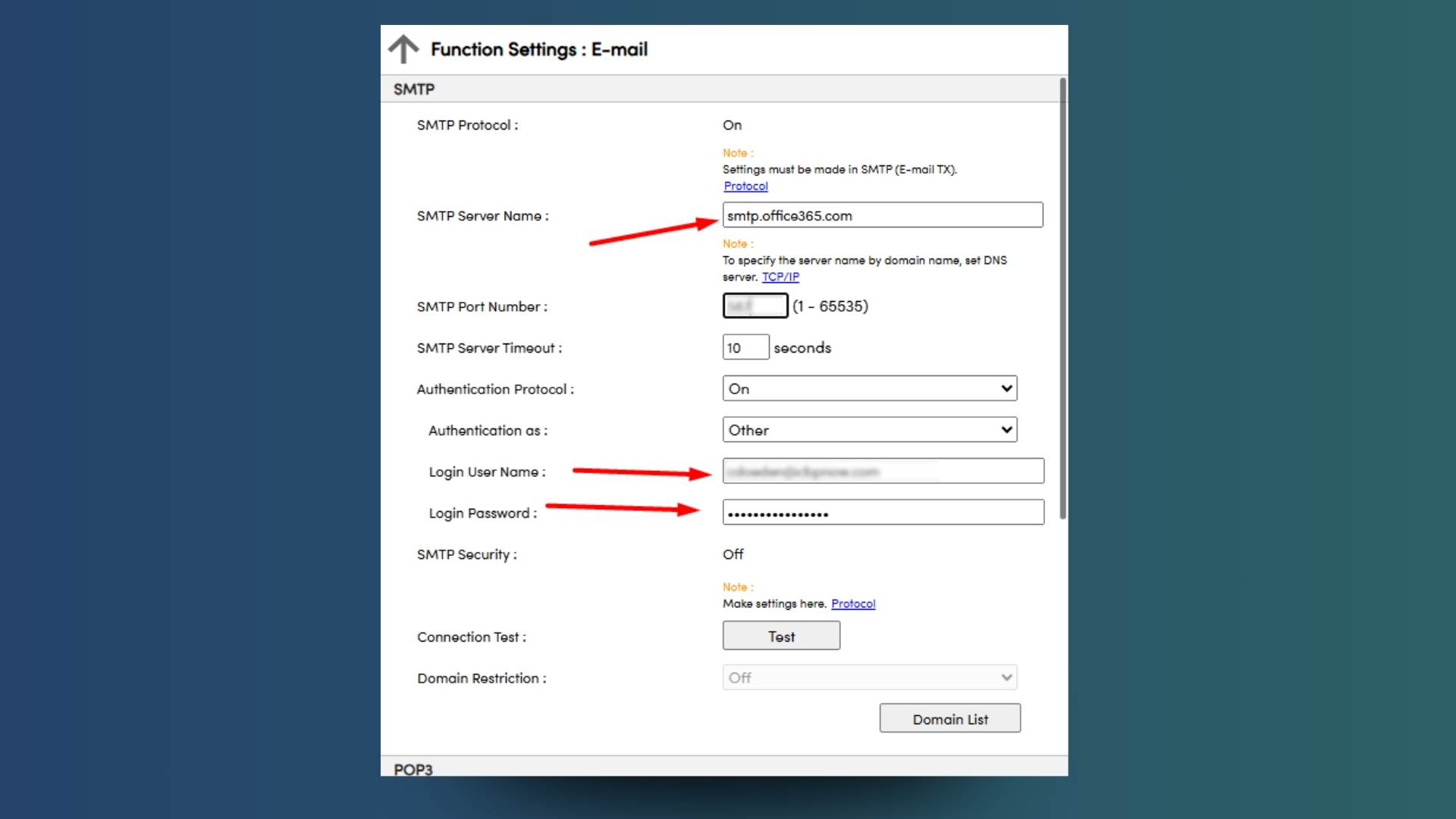
For years, many devices, including copiers, have been configured to send emails by directly authenticating with mail servers using a simple username and password – this is known as Basic Authentication. While convenient, this method is less secure and has been increasingly targeted by malicious actors.
To enhance security across its platforms, Microsoft is phasing out Basic Authentication for various services, including SMTP (Simple Mail Transfer Protocol), the standard protocol used for sending emails. This means that the username and password you’ve entered into your copier’s web settings to relay emails will no longer be accepted by Microsoft’s mail servers, rendering emails undeliverable.
Microsoft 365’s High Volume Email (HVE) service will continue to support Basic Authentication for internal recipients until September 2028, according to a Microsoft blog.
Kyocera’s Future-Proof Solutions:
Microsoft is requiring a more secure and modern authentication method called OAuth 2.0. OAuth doesn’t directly expose user credentials to the application (in this case, your copier). Instead, it uses tokens to grant access, making the process significantly more secure.
Most of Kyocera’s current products can be configured for direct communication to the Exchange utilizing Microsoft Modern Authentication (OAuth2). This capability is native from the devices’ Command Center administration portal.
Note: A3 models support multi-sender configurations, while A4 models may support single-sender configurations or multi-sender configurations with an SSD installed, depending on the specific model.
Legacy Kyocera devices that do not currently support direct communication with the Exchange using Microsoft Modern Authentication (OAuth2) can still be made compatible. These devices can be configured with the Kyocera Exchange Online Connector application, which enables communication with the Exchange 365 cloud server for sending and receiving emails. The application can be hosted and run as a service on a Windows Server or PC, and a single instance can support an entire fleet of Kyocera MFPs and printers.
PinPoint Scan
PinPoint Scan can be extremely beneficial for businesses of all sizes. Skip the old, slow process of scanning in documents one by one and then renaming them manually from your computer. Check out this Kyocera HyPAS application to cut your workflow in half.
Kyocera Cloud Capture (KCC)
Kyocera Cloud Capture offers a seamless solution to the retirement of Basic Authentication by supporting OAuth 2.0 for secure email delivery. Instead of relying on outdated SMTP credentials, Cloud Capture authenticates directly with Microsoft 365, ensuring continued scan-to-email functionality without compromising security.
KCC is Kyocera’s cloud-based document capture solution that converts paper documents to digital. Effortlessly convert paper documents into searchable or editable formats through your copier and securely store them in your designated destination.
The EvolutionNext Series:
Kyocera’s newest line of copiers, the TASKalfa EvolutionNext Series has been future-proofed to meet the evolving demands of print, cloud, and security–before the industry can even catch up. These new devices come with OAuth 2.0 built in, eliminating the need for another solution!
This new series integrates effortlessly with modern platforms like Microsoft Exchange 365, Universal Print, and Windows Protected Print Mode (WPP).
Kyocera Exchange Online Connector (EOC)
For organizations with Kyocera copiers, a crucial intermediary solution is the Kyocera Exchange Online Connector (EOC). A free utility for Kyocera devices to print and send emails and attachments from Microsoft Exchange.
How KCC and EOC Bridge the Gap:
- OAuth Configured in Software: Your IT administrator will install and configure the EOC or KCC on a workstation or server within your network. This utility will be set up to use OAuth for authenticating with Microsoft Exchange.
- Copier Sends to the EU: Instead of directly communicating with Microsoft’s mail server (via SMTP), your copier will send scanned documents to the workstation or server running the EOC or KCC Utility.
- Relays Securely: The solutions, leveraging OAuth configuration, will then securely relay the scanned documents directly to Microsoft Exchange, delivering the email successfully.
Avoid Disruptions:
If your office relies on your copier to send emails, it’s critical to understand this change and plan accordingly.
Contact your IT support: Work with your IT department to understand the timeline for Microsoft’s Basic Authentication retirement and to begin planning the implementation of one of the listed solutions.
Basic Authentication will end in March of 2026. Waiting to reconfigure will result in your copier losing the ability to send emails directly through Microsoft 365. By understanding the changes and implementing the necessary steps, you can ensure a smooth transition and maintain this essential functionality.
Questions? Contact us here.
Windows Protected Print Mode (WPP) and Universal Print
Windows Protected Print Mode (WPP) is a major security update that eliminates the need for third-party print drivers, reducing vulnerabilities and requiring fewer user privileges.
However, enabling WPP prematurely may cause compatibility issues with certain devices and finishing options, so careful evaluation is essential before activation.
Read more about WPP right here to learn what this means for you:
Click Here to Read about the Risk of Windows Protected Print Mode (WPP)
Windows Protected Print Mode (WPP) is the most significant printing reform in 20 years. In short, WPP is a security-enhancing printing update for Windows that requires lower privileges and eliminates the need for third-party drivers. Removing third-party drivers from the equation removes security risks that can and have led to cyber criminals gaining system-level access.
Transitioning to WPP is an all-or-nothing setting within Windows. Once enabled, all existing print queues and drivers are removed, and print queues have to be reconfigured from scratch. There’s no undo (CTRL+Z) to reverse this change!
Before enabling WPP, it is crucial to research its compatibility with your device: numerous devices and finishing options may be rendered inoperable if enabling WPP too early.
We will answer all of the following questions in this article:
- What is Windows Protected Print Mode?
- When is Microsoft launching WPP?
- What does this mean for me?
- Does Century recommend that I enable WPP?
All of these questions are answered by Craig Doeden, our Solutions Director, in this brief video explainer:
Our newest video update on WPP can be found here:
What is Windows Protected Print Mode?
Windows Protected Print Mode is a security enhancement done by Microsoft to simplify printing and to remove possible vulnerabilities. Third-party drivers are being phased out by Microsoft, essentially removing the Achilles’ Heel of printing.
Print driver and print stack-related issues account for 9% of all Windows security issues reported to Microsoft Security Response Center (MSRC). This is because the spooler runs with system privileges and loads code on top of the network—making the entire operating system exposable to malware.
This led to PrintNightmare—allowing hackers to exploit the vulnerability and remotely install programs, view or delete data, and even create new user accounts with full user rights. Microsoft introduced patches to PrintNightmare, however they were only a temporary workaround. Admin rights are now required to install printers and only protects a shared computer, it does not correct the spooler system privileges issue that allowed attackers in.
With the fundamental flaw of third-party drivers still at-large, Microsoft looks to Windows Protected Print mode to close the vulnerabilities for good. WPP moves all printers to the Internet Printing Protocol (IPP) standard, removing the need for third-party drivers entirely.
Under WPP, job and print delivery will utilize IPP, the core transport protocol—a well-established, open standard that provides a framework for job submission, status tracking, and printer discovery. Client computers will no longer be able to load print drivers from third parties, eliminating the risk of malicious code from attackers. Common spooler tasks will now run as user, since drivers are no longer required to run as system, reducing the risk of a buggy program infiltrating the system.
When is Microsoft launching WPP?
Microsoft launched WPP on October 1st, 2024. It will remain optional for a while as users slowly adopt the new system and any issues with WPP are resolved. Windows Protected Print mode will be a default setting in 2027.
What does this mean for me?
WPP is requiring that all devices become Mopria certified. Not all devices are certified yet—and even if they are Mopria certified, that doesn’t mean it will work appropriately in WPP mode.
If you enable WPP on a device that is not ready for WPP—it will not work. Many devices are still reliant on specific drivers that WPP will not allow—drivers that will have been permanently deleted upon enabling WPP.
If a device does support IPP, that doesn’t mean it supports IPP’s PDF-based spool files; it may only support formats like JPEG or URF/raster. This requires the print job to be submitted to the printer entirely before the printer can begin printing, causing slower printing and even failure to print for larger documents if the printer is unable to store the entire print job.
It is crucial to note that several finishing options may be inaccessible under WPP. You may lose functionality of these features:
- Booklet Folding
- Stapling
- Tray Selection
- Hole Punch
- Folding
- And More
All of your devices, the entire fleet, should be thoroughly assessed for compatibility with WPP & IPP before implementation.
Does Century recommend that I enable WPP?
Century does not recommend enabling WPP immediately and instead holding off a bit. Again, this is an all-or-nothing switch that severs ties to print drivers completely, and you cannot undo it. Numerous devices and finishing options may be rendered inoperable if enabling WPP too early.
Look into WPP
We ask that you pass this WPP article to your IT department. Have discussions with them on the advantages, the disadvantages, the good, the bad, and all that comes with it. A lot can and will change in the three years leading up to the 2027 default launch, but as WPP stands right now, we do not recommend enabling it just yet.
Questions about WPP? Find answers here.
 Questions?
Contact Century
Questions?
Contact Century